
Image Editing
Edit images using natural language instructions without re-uploading or specifying complex parameters.
Editing Methods
1. Continue Editing (Conversational)
Edit the last image in your session without specifying which one:
[After generating an image]
Add some clouds in the sky
Make it more dramatic
Remove the person on the leftThis is the most natural way to iterate on images.
2. Edit by ID
Edit a specific image by its database ID:
Edit image #42: Add a rainbow in the backgroundUseful when you want to edit an older image, not the most recent one.
3. Upload and Edit
Upload an image from a URL and edit it:
Upload this image: https://example.com/photo.jpg
Now add a sunset filterTwo-step process:
upload_image_for_editing- Downloads and stores the imageedit_uploaded_image- Applies your edits
What You Can Edit
Add Elements
Add a rainbow in the sky
Add some birds flying
Add a person walking in the distance
Add reflections in the waterRemove Elements
Remove the car from the scene
Remove the text/watermark
Remove the people in the background
Remove the cloudsChange Properties
Make the sky darker
Make it look like sunset
Change the grass to autumn colors
Make it more vibrantStyle Transfer
Make it look like a watercolor painting
Apply a vintage film look
Convert to black and white
Make it look like animeLighting Adjustments
Add dramatic lighting
Make it golden hour lighting
Add rim lighting to the subject
Create a backlit silhouette effectEdit Limitations
What Editing Can't Do
- Change composition: Can't zoom in/out or reframe
- Change aspect ratio: Significant changes may cause issues
- Reposition subjects: Major movement of elements
- Change perspective: Can't rotate the viewpoint
For these changes, generate a new image instead.
Edit Workflow
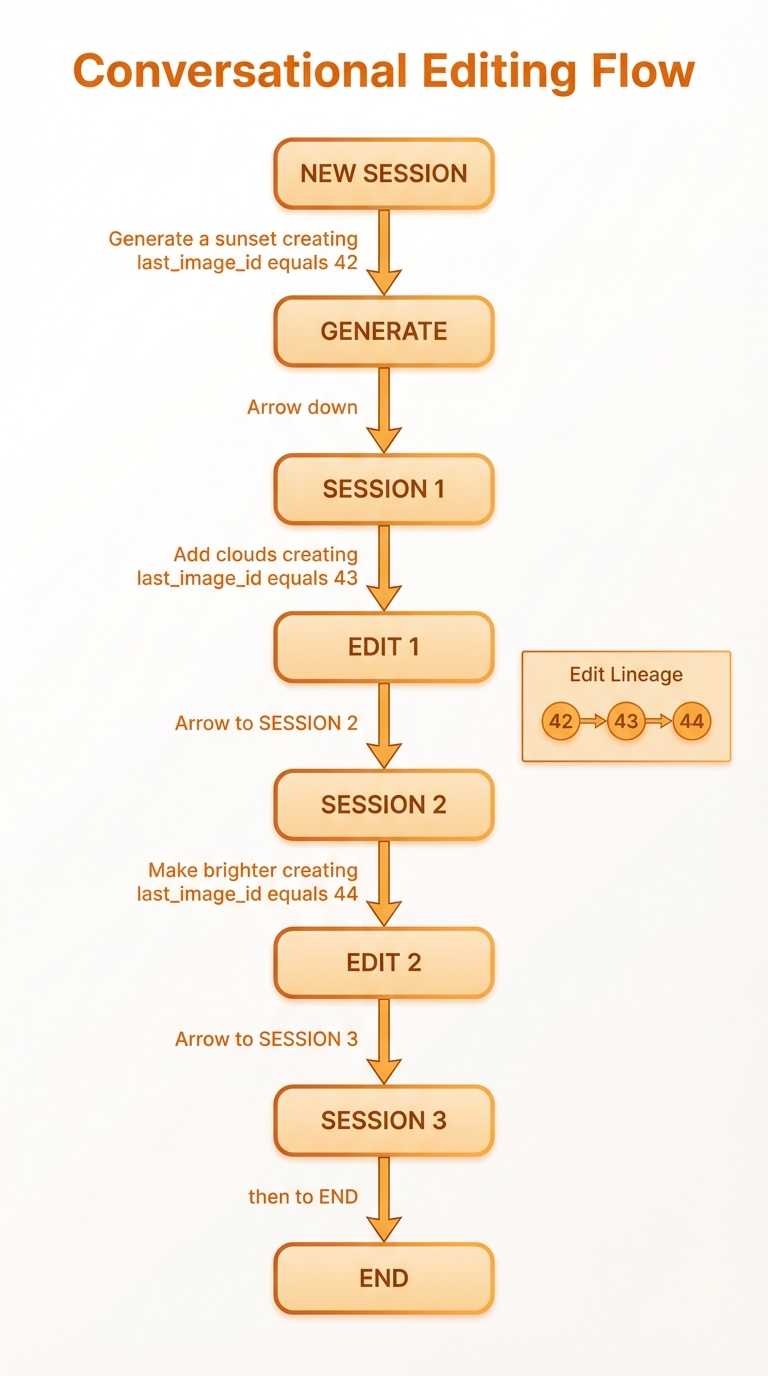
Continue editing, fetch by ID, or upload - with Gemini cache optimization
Edit Lineage
Every edit creates a new image linked to its parent:
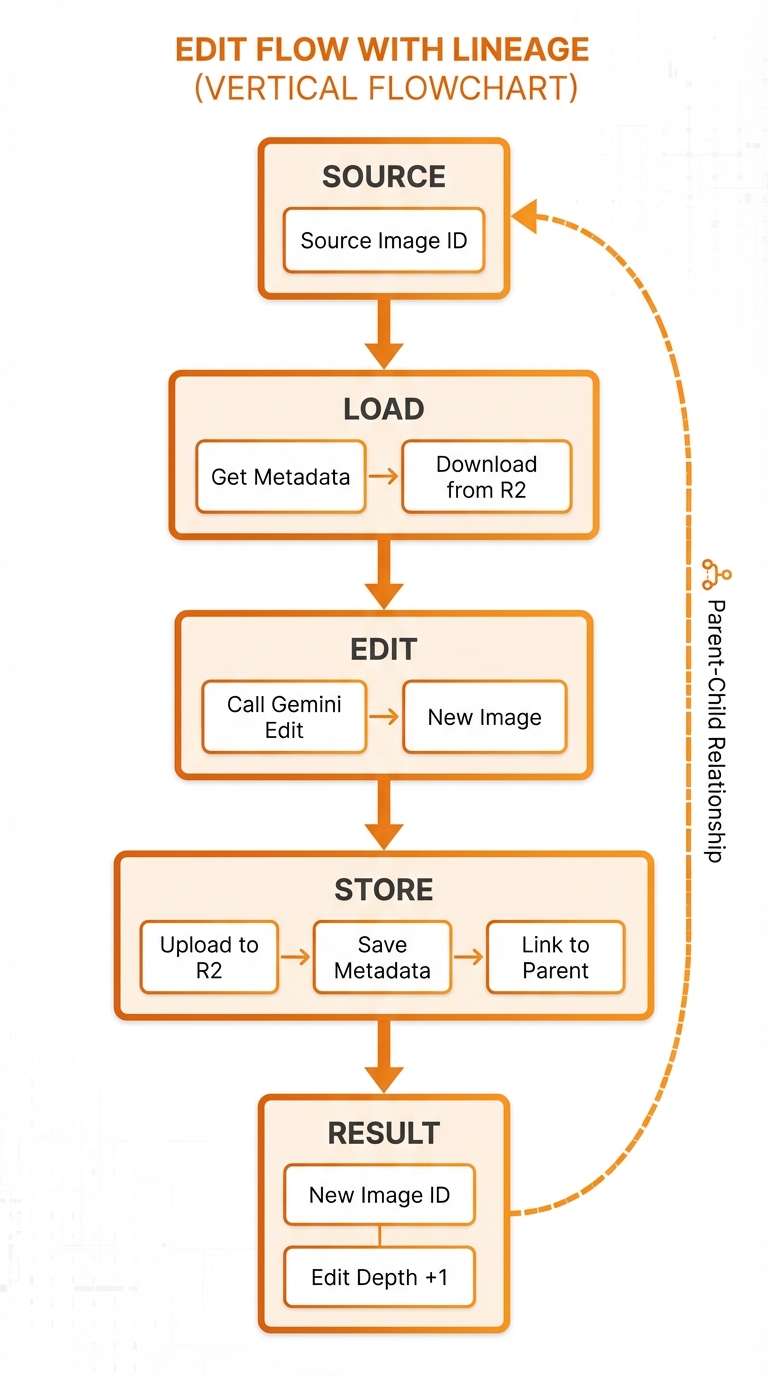
Version history with branching from any point
Benefits:
- Version history: See how an image evolved
- Non-destructive: Original always preserved
- Branching: Create variations from any point
Best Practices
Be Specific
❌ "Make it better" ✅ "Increase the contrast and add warmer tones"
❌ "Add something interesting" ✅ "Add a hot air balloon in the distance"
Work Incrementally
Instead of:
Add clouds, birds, a rainbow, make it sunset, and add lens flareDo:
Add dramatic clouds in the sky
→ [Review result]
Add some birds flying in formation
→ [Review result]
Add warm sunset colors to the sky
→ [Review result]Use Negative Prompts
Add a mystical fog effect
Avoid: completely obscuring the subject, too darkDescribe Context
Add reflections of the mountains in the lake waterBetter than:
Add reflectionsEditing Examples
Portrait Enhancement
Original: A portrait photo
Edit 1: Soften the background blur
Edit 2: Add subtle rim lighting
Edit 3: Enhance the eye catchlights
Edit 4: Add a gentle warm color gradeLandscape Transformation
Original: A daytime mountain scene
Edit 1: Change to sunset lighting
Edit 2: Add dramatic clouds
Edit 3: Add mist in the valleys
Edit 4: Add a reflection lake in the foregroundProduct Shot Refinement
Original: Product on white background
Edit 1: Add soft shadows
Edit 2: Add subtle reflection
Edit 3: Add depth by blurring background slightly
Edit 4: Add professional lighting highlightsSession State
The session tracks your editing context:
| Field | Purpose |
|---|---|
last_image_id | Most recent image for continue_editing |
total_images | Count of images in session |
total_edits | Count of edit operations |
When you use continue_editing, it automatically uses last_image_id.
Gemini File Caching
For faster edits, Go Bananas! caches images in Gemini's Files API:
| Scenario | Behavior |
|---|---|
| Edit within 48 hours | Uses cached file (fast) |
| Edit after 48 hours | Re-uploads from R2 (slower) |
| Edit uploaded image | Creates new cache entry |
You don't need to manage this - it's automatic.
API Details
Continue Editing
{
  "tool": "continue_editing",
  "params": {
    "prompt": "Add clouds in the sky",
    "negative_prompt": "cartoon, unrealistic"
  }
}Edit by ID
{
  "tool": "edit_image",
  "params": {
    "image_id": 42,
    "prompt": "Make it sunset lighting"
  }
}Upload for Editing
{
  "tool": "upload_image_for_editing",
  "params": {
    "image_url": "https://example.com/photo.jpg"
  }
}Then:
{
  "tool": "edit_uploaded_image",
  "params": {
    "image_id": 123,
    "edit_prompt": "Add a vintage filter"
  }
}