
Web Console Overview
New to the hosted app? Create your first image, connect your provider, and understand provider billing versus workspace storage.
The Go Bananas! Web Console provides a visual interface for managing your image generation workflows.
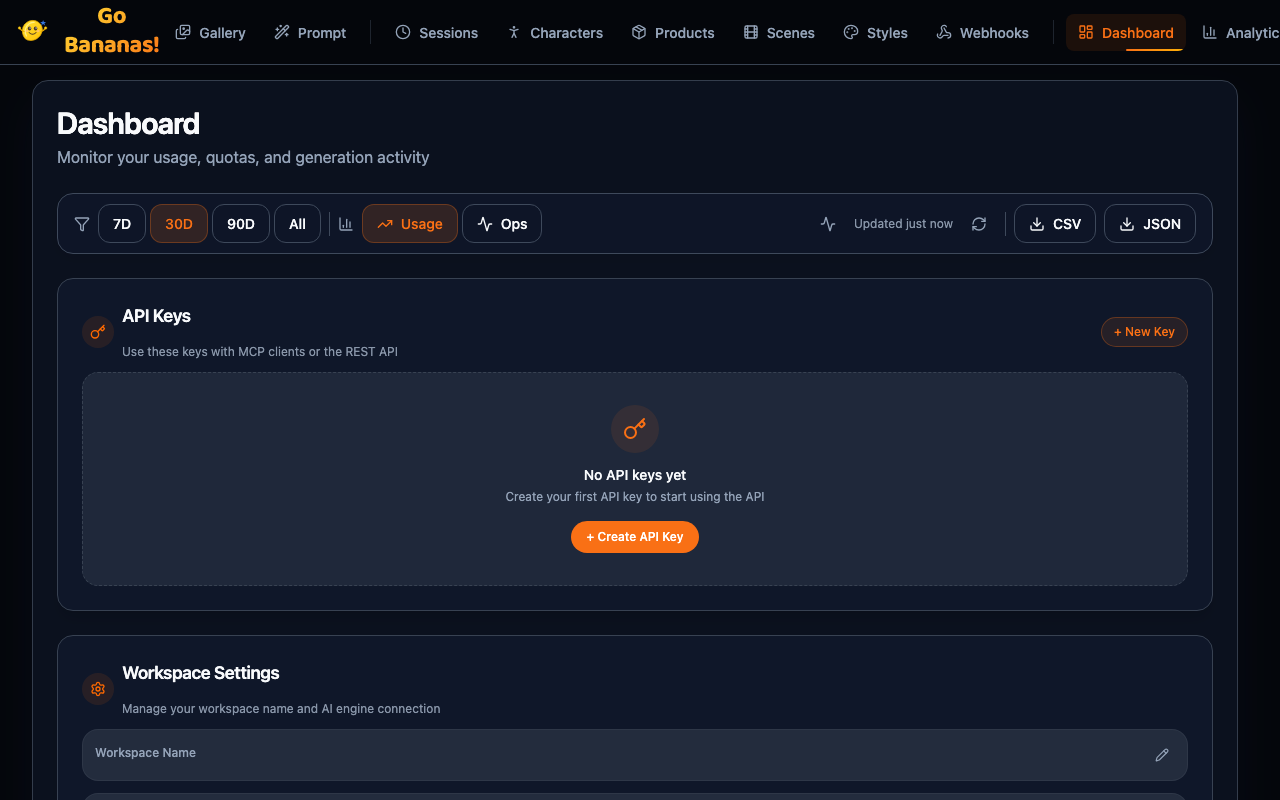
Accessing the Console
Navigate to your Go Bananas! instance URL:
https://gobananasai.comAuthentication
Sign in using an available login option, then select your workspace. If setup is incomplete, follow Create your first image. Existing workspace owners can manage provider connections in Dashboard → Workspace Settings.
A Go Bananas API key is for client access; it does not replace the workspace’s Gemini or OpenAI provider connection.
Console Views
| View | Purpose |
|---|---|
| Dashboard | Usage statistics, quotas, overview |
| Gallery | Browse, search, manage images |
| Composer | Generate and edit images |
| Characters | Manage character library |
| Products | Manage product references |
| Sessions | View session history |
| Style Presets | Manage reusable style templates |
| Scenes | Save and reuse scene presets |
| Analytics | Detailed usage analytics and trends |
| Webhooks | Configure quota notification webhooks |
| Admin | Tenant and user management |
| People | User management and team invitations |
| Your account | Your details, download your data, delete your account (7-day grace period). Opened from the account menu |
| Codex subscription | Connect your ChatGPT/Codex subscription with a one-time code and generate with it, or switch to your workspace provider API. Shown as Codex in the sidebar to owners and managers, where the deployment enables it |
| Connect | Setup steps for Claude, ChatGPT, Cursor, VS Code, Claude Code, Codex, Gemini CLI and the terminal. Public page at gobananasai.com/connect (no sign-in needed); the dashboard's Connect Your Tools panel shows the same guide |
Navigation
The console uses a sidebar navigation:
┌─────────────────────────────────────────────────┐
│  🍌 Go Bananas!                      [User ▼]  │
├─────────┬───────────────────────────────────────┤
│         │                                       │
│ 📊 Dash │    [Main Content Area]                │
│ 🖼️ Gal  │                                       │
│ ✏️ Comp │                                       │
│ 👤 Char │                                       │
│ 📦 Prod │                                       │
│ 💬 Sess │                                       │
│ ⚙️ Admin│                                       │
│         │                                       │
└─────────┴───────────────────────────────────────┘Features by Role
Regular Users
| Feature | Access |
|---|---|
| Generate images | ✅ |
| Edit images | ✅ |
| Manage characters | ✅ |
| Manage products | ✅ |
| View analytics | ✅ |
| Browse gallery | ✅ |
Administrators
| Feature | Access |
|---|---|
| All user features | ✅ |
| View all tenants | ✅ |
| Create tenants | ✅ (super_admin) |
| Manage API keys | ✅ |
| User management | ✅ (super_admin) |
| Invite users | ✅ (super_admin) |
Key Workflows
See the console in action with these workflow demonstrations:
Image Generation
Enter a prompt and generate stunning AI images in seconds.

- Navigate to Composer
- Enter your prompt
- Adjust settings (aspect ratio, model, style)
- Click Generate
- View result in Gallery
Conversational Editing
Iteratively refine images with natural language instructions.

- Select an image in Gallery
- Click Edit
- Describe the changes you want
- Apply and iterate
Character Generation
Create consistent characters and use them across multiple scenes.

- Create characters in Characters view
- Define appearance and style
- Generate with character in any scene
Product Marketing
Generate professional product shots with your saved references.

- Add product references in Products view
- Select product in Composer
- Describe the marketing scene
- Generate professional shots
Gallery Management
Browse, search, and organize your image library.

- Browse images in Gallery
- Search by prompt, date, or type
- Switch between view modes
- Open lightbox for details
Mobile Support
The console is responsive and works on mobile devices:
- Touch-friendly navigation
- Responsive grid layouts
- Mobile-optimized forms
- Swipe gestures in gallery
Keyboard Shortcuts
| Shortcut | Action |
|---|---|
Ctrl/Cmd + K | Open search |
Ctrl/Cmd + N | New generation |
Ctrl/Cmd + A | Select all (in gallery) |
Esc | Close modal/lightbox |
← → | Navigate gallery |
Delete | Delete selected |
Settings
Access user settings via the profile dropdown:
- Theme: Light/Dark mode toggle
- Display: Grid preferences, thumbnail size
- Notifications: Alert preferences
- API Key: View/copy your key
Quick Actions
The console provides quick action buttons:
| Action | Location |
|---|---|
| Generate Image | Header, Composer |
| Search Images | Header, Gallery |
| Upload Image | Composer |
| Export Data | Dashboard |
Next Steps
Explore each console view:
- Dashboard → - Monitor your usage
- Gallery → - Browse your images
- Composer → - Create new images
- Characters → - Build your library
- Products → - Add product references
- Sessions → - View history
- Style Presets → - Manage style templates
- Scenes → - Save and reuse scene presets
- Analytics → - View detailed analytics
- Webhooks → - Configure notifications
- Admin → - Manage system (admins)
- People → - Manage users and teams