
Style Presets
The Style Presets view lets you create and manage reusable prompt templates for consistent branding across your image generations.
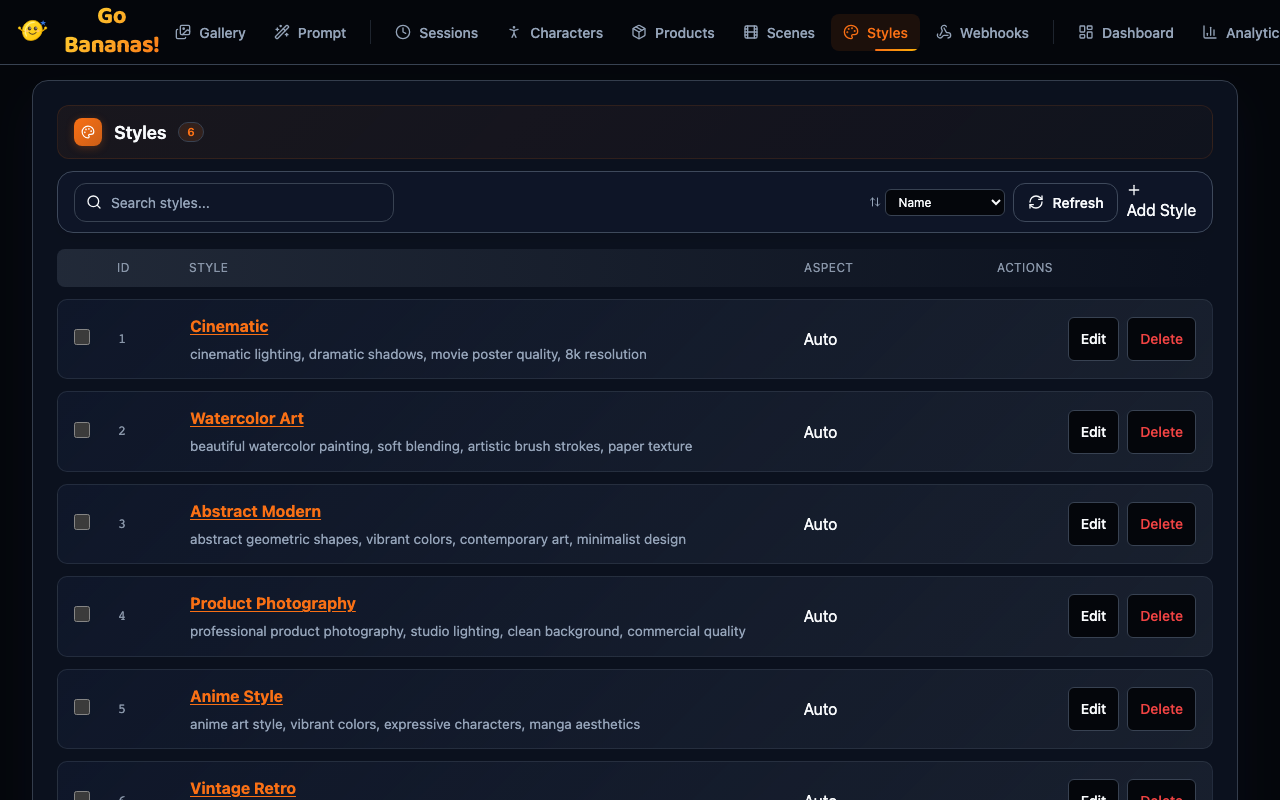
Overview
Style Presets enable:
- Consistent branding with saved prompt fragments
- Quick application of styles to any generation
- Negative prompt defaults to avoid common issues
- System instructions for global style guidance
Style Preset Library
Library View
┌─────────────────────────────────────────────────────────────┐
│  Style Presets                   [🔍 Search] [+ New Preset]  │
├─────────────────────────────────────────────────────────────┤
│                                                             │
│  ┌─────────────────┐  ┌─────────────────┐  ┌─────────────┐ │
│  │ 🎨 Cinematic    │  │ 🎨 Watercolor   │  │ 🎨 Product  │ │
│  │                 │  │                 │  │   Photo     │ │
│  │ Movie poster    │  │ Soft painting   │  │ E-commerce  │ │
│  │ quality         │  │ style           │  │ ready       │ │
│  └─────────────────┘  └─────────────────┘  └─────────────┘ │
│                                                             │
│  ┌─────────────────┐  ┌─────────────────┐  ┌─────────────┐ │
│  │ 🎨 Anime        │  │ 🎨 Vintage      │  │     +       │ │
│  │                 │  │    Retro        │  │  Add New    │ │
│  │ Japanese art    │  │ 1970s film      │  │             │ │
│  │ style           │  │ aesthetic       │  │             │ │
│  └─────────────────┘  └─────────────────┘  └─────────────┘ │
│                                                             │
└─────────────────────────────────────────────────────────────┘How Style Presets Work
When you select a style preset during generation:
Your Prompt:       "A mountain landscape at sunset"
                           +
Style Prompt:      "cinematic lighting, dramatic shadows,
                    movie poster quality, 8k resolution"
                           =
Final Prompt:      "cinematic lighting, dramatic shadows,
                    movie poster quality, 8k resolution,
A mountain landscape at sunset"Additionally:
- Negative prompt is automatically applied
- System instruction guides the AI's style approach
- Aspect ratio uses the preset's default
Creating a Style Preset
Step 1: Basic Information
┌─────────────────────────────────────────────────────┐
│ Create Style Preset                             [×] │
├─────────────────────────────────────────────────────┤
│ Preset Name *                                       │
│ ┌─────────────────────────────────────────────────┐ │
│ │ Cinematic                                       │ │
│ └─────────────────────────────────────────────────┘ │
│                                                     │
│ 💡 Choose a descriptive name that reflects the     │
│    style's visual characteristics                   │
└─────────────────────────────────────────────────────┘Step 2: Prompt Fragment
┌─────────────────────────────────────────────────────┐
│ Prompt Fragment                                     │
│ ┌─────────────────────────────────────────────────┐ │
│ │ cinematic lighting, dramatic shadows, movie     │ │
│ │ poster quality, 8k resolution, professional     │ │
│ │ color grading, lens flare                       │ │
│ └─────────────────────────────────────────────────┘ │
│                                                     │
│ This text is prepended to your generation prompts   │
│                                                     │
│ Negative Prompt (optional)                          │
│ ┌─────────────────────────────────────────────────┐ │
│ │ cartoon, anime, illustration, low quality,      │ │
│ │ blurry, amateur                                 │ │
│ └─────────────────────────────────────────────────┘ │
│                                                     │
│ Things to avoid in generated images                 │
└─────────────────────────────────────────────────────┘Step 3: System Instruction
┌─────────────────────────────────────────────────────┐
│ System Instruction (optional)                       │
│ ┌─────────────────────────────────────────────────┐ │
│ │ Create images with Hollywood movie production   │ │
│ │ quality. Use dramatic lighting with strong      │ │
│ │ contrast between highlights and shadows.        │ │
│ └─────────────────────────────────────────────────┘ │
│                                                     │
│ High-level style guidance for the AI               │
│                                                     │
│ Default Aspect Ratio                               │
│ [□ 1:1] [● 16:9] [□ 9:16] [□ 4:3] [□ 2:3]         │
└─────────────────────────────────────────────────────┘Step 4: Save
┌─────────────────────────────────────────────────────┐
│ Preview                                             │
├─────────────────────────────────────────────────────┤
│ Name: Cinematic                                     │
│                                                     │
│ When applied to "A mountain sunset":                │
│ ┌─────────────────────────────────────────────────┐ │
│ │ cinematic lighting, dramatic shadows, movie     │ │
│ │ poster quality, 8k resolution, professional     │ │
│ │ color grading, lens flare, A mountain sunset    │ │
│ └─────────────────────────────────────────────────┘ │
│                                                     │
│ [Cancel]                          [Create Preset]   │
└─────────────────────────────────────────────────────┘Using Style Presets
In Composer
- Go to Composer → Styles tab
- Select a preset from the list
- Enter your scene/subject prompt
- Generate
The preset's settings are automatically merged with your prompt.
Quick Apply from Library
Right-click any preset:
┌─────────────────────────────┐
│ Generate with this Style    │
│ ─────────────────────────── │
│ Edit Preset                 │
│ Duplicate                   │
│ ─────────────────────────── │
│ Delete                      │
└─────────────────────────────┘Built-in Style Presets
These presets are available by default:
| Preset | Description | Best For |
|---|---|---|
| Cinematic | Movie poster quality with dramatic lighting | Hero shots, landscapes |
| Watercolor Art | Soft painting with brush strokes | Artistic illustrations |
| Product Photography | Clean, professional e-commerce style | Product shots |
| Anime Style | Japanese animation aesthetic | Character art |
| Vintage Retro | 1970s film photography look | Nostalgic imagery |
| Abstract Modern | Geometric shapes, bold colors | Abstract art |
Editing Style Presets
Update Prompt
┌─────────────────────────────────────────────────────┐
│ Edit Style Preset: Cinematic                    [×] │
├─────────────────────────────────────────────────────┤
│ Name                                                │
│ ┌─────────────────────────────────────────────────┐ │
│ │ Cinematic Pro                                   │ │
│ └─────────────────────────────────────────────────┘ │
│                                                     │
│ Prompt Fragment                                     │
│ ┌─────────────────────────────────────────────────┐ │
│ │ Updated prompt text...                          │ │
│ └─────────────────────────────────────────────────┘ │
│                                                     │
│ [Cancel]                          [Save Changes]    │
└─────────────────────────────────────────────────────┘Best Practices
Effective Prompt Fragments
Do include:
- Technical quality terms (8k, high resolution)
- Lighting descriptions (dramatic, soft, studio)
- Style keywords (cinematic, watercolor, minimalist)
- Color guidance (vibrant, muted, monochrome)
Avoid:
- Subject matter (let user provide this)
- Specific compositions
- Scene descriptions
✅ Good: "cinematic lighting, dramatic shadows,
movie poster quality, 8k resolution"

❌ Bad: "a person standing in dramatic lighting
in a city at night"Negative Prompt Tips
Common things to exclude:
| Issue | Negative Prompt |
|---|---|
| Low quality | blurry, pixelated, low resolution |
| Wrong style | cartoon, anime (for realism) |
| Artifacts | watermark, signature, text |
| Unwanted elements | extra limbs, deformed |
Organizing Presets
Create presets for:
- Brand styles: Your company's visual identity
- Project styles: Consistent look for specific projects
- Art styles: Different artistic approaches
- Use cases: Product shots, portraits, landscapes
Deleting Style Presets
WARNING
Deleting a preset removes it permanently. Images generated with the preset are NOT deleted.
┌─────────────────────────────────────────────────────┐
│ Delete Style Preset?                                │
├─────────────────────────────────────────────────────┤
│ Are you sure you want to delete "Cinematic"?        │
│                                                     │
│ • Preset definition will be removed                 │
│ • Existing images will NOT be affected              │
│                                                     │
│ [Cancel]                                 [Delete]   │
└─────────────────────────────────────────────────────┘API Access
Style Presets are also accessible via:
- MCP Tools:
create_style_preset,list_style_presets,update_style_preset - REST API:
GET/POST /api/style-presets
See Style Presets API for details.
Poster Presets
For poster-specific work, use generate_poster from MCP. It includes a curated poster style pack and structured fields for headline, subhead, body, footer, palette, template references, hero photos, and logos.
Generate a poster:
brief: tech product launch poster
style: minimal-tech-keynote
title: Lume
subtitle: Attention, reimagined
footer: October 14Run list_poster_styles to browse the available poster styles before generating.
Next Steps
- Create characters for consistent character generation
- Add products for marketing imagery
- View analytics to track preset usage